For macOS 14 and later
Doorplate
Mission Control still calls them Desktop 1, Desktop 2, Desktop 3.
Doorplate gives every one of them a name.
Your desktops, with names on the door.
The name sits under the thumbnail in Mission Control, in the menu bar, and one keystroke away. Native Swift. One permission. Nothing leaves your Mac.
Space changes arrive as system notifications; one cheap sweep every 1.5 s catches added or removed desktops.
One process, no helper, no extension.
Accessibility, for the Mission Control names and keypress-style switching.
No accounts, no telemetry. The only calls are the license check and a once-a-day look at doorplate.app for a newer version, with nothing sent.
Names everywhere
One name. Five places.
Set it once, from any of them. The same name, color and icon follow you to every place the number used to be: the menu bar, Mission Control, the Quick Switcher, the hover strip and the tag that greets you when you land.
On the screen
Every name, in its place.
The same four surfaces on a whole Mac screen: the pills under Mission Control, the menu bar and its list, the Quick Switcher, and the tag that greets you when you land.
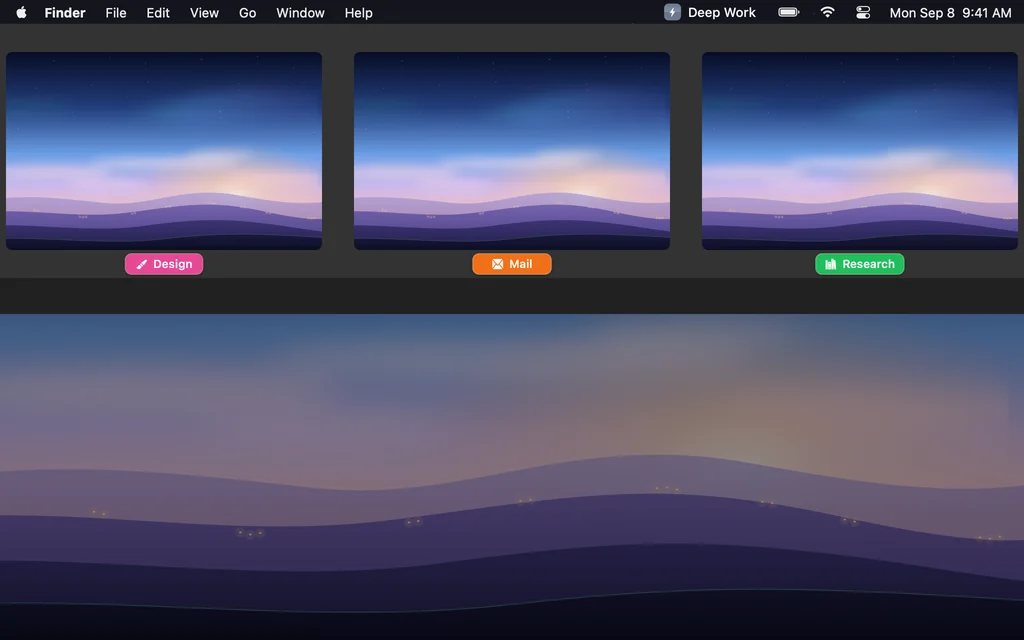
01Mission Control
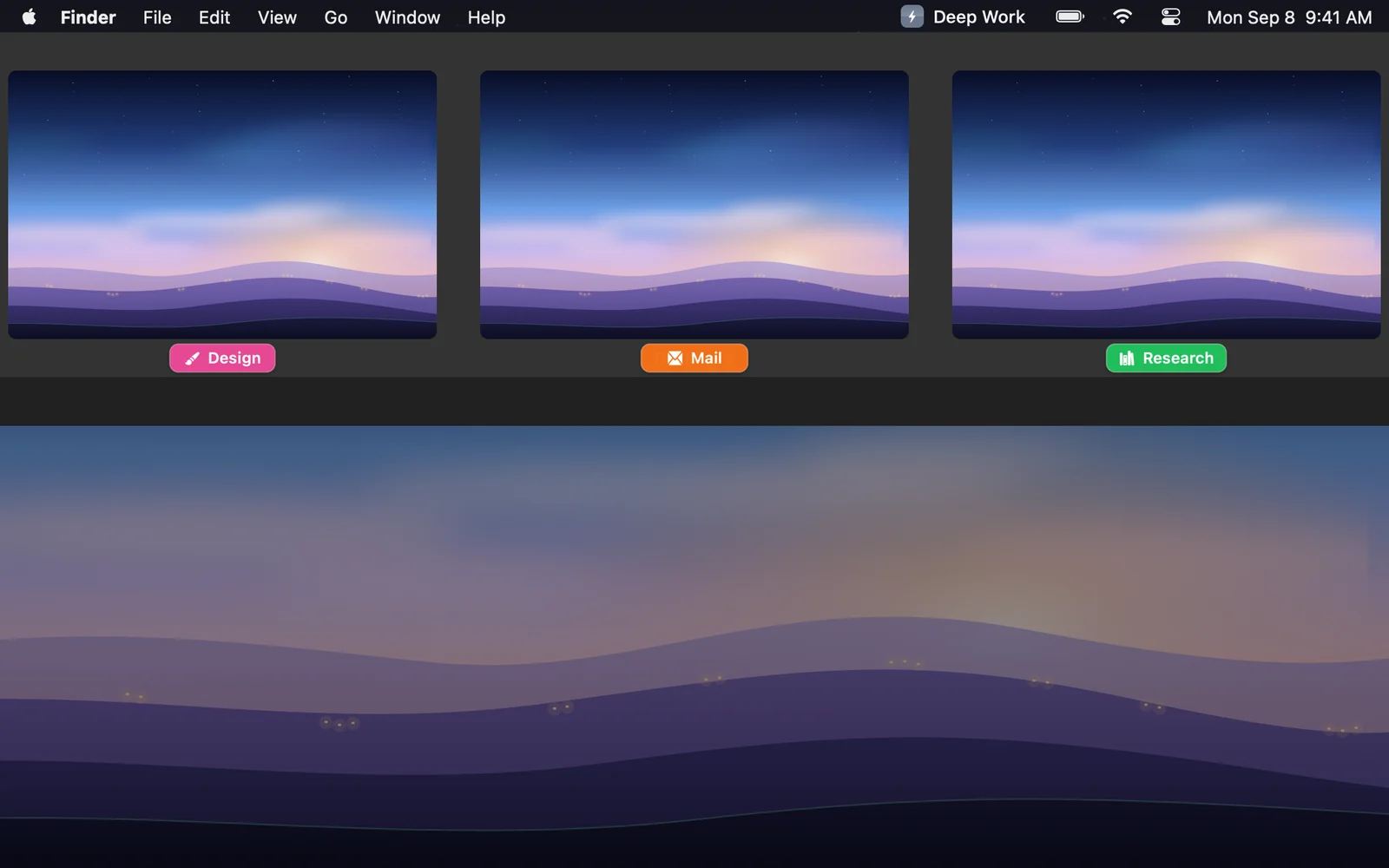
The pills under every desktop.
Where macOS says “Desktop 3”, Doorplate lays the name in the desktop’s color. The row, the thumbnails and the animation are the Dock’s; the pills ride along.
02Menu bar
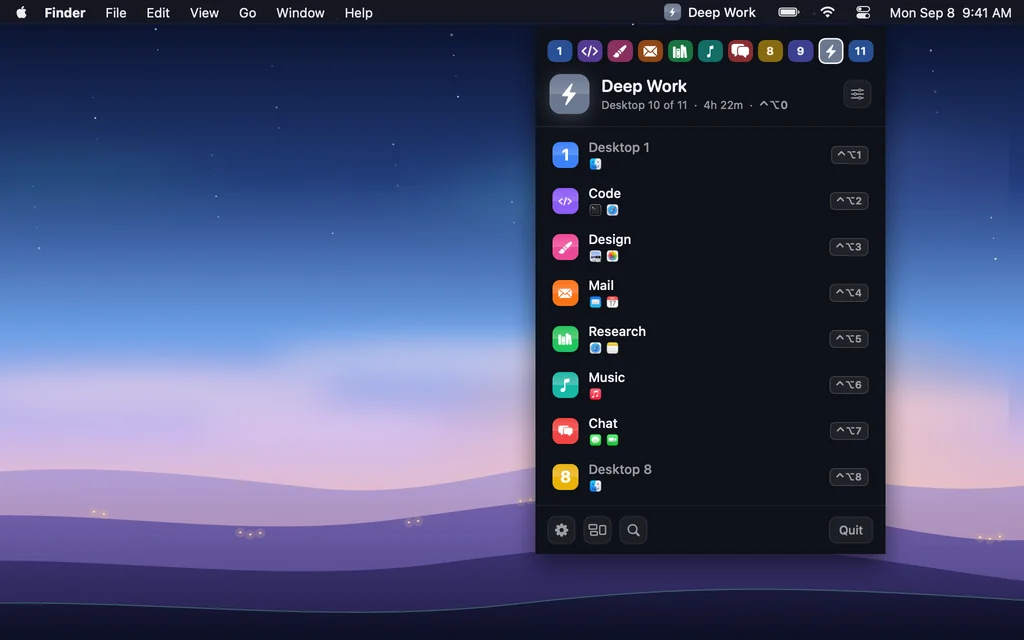
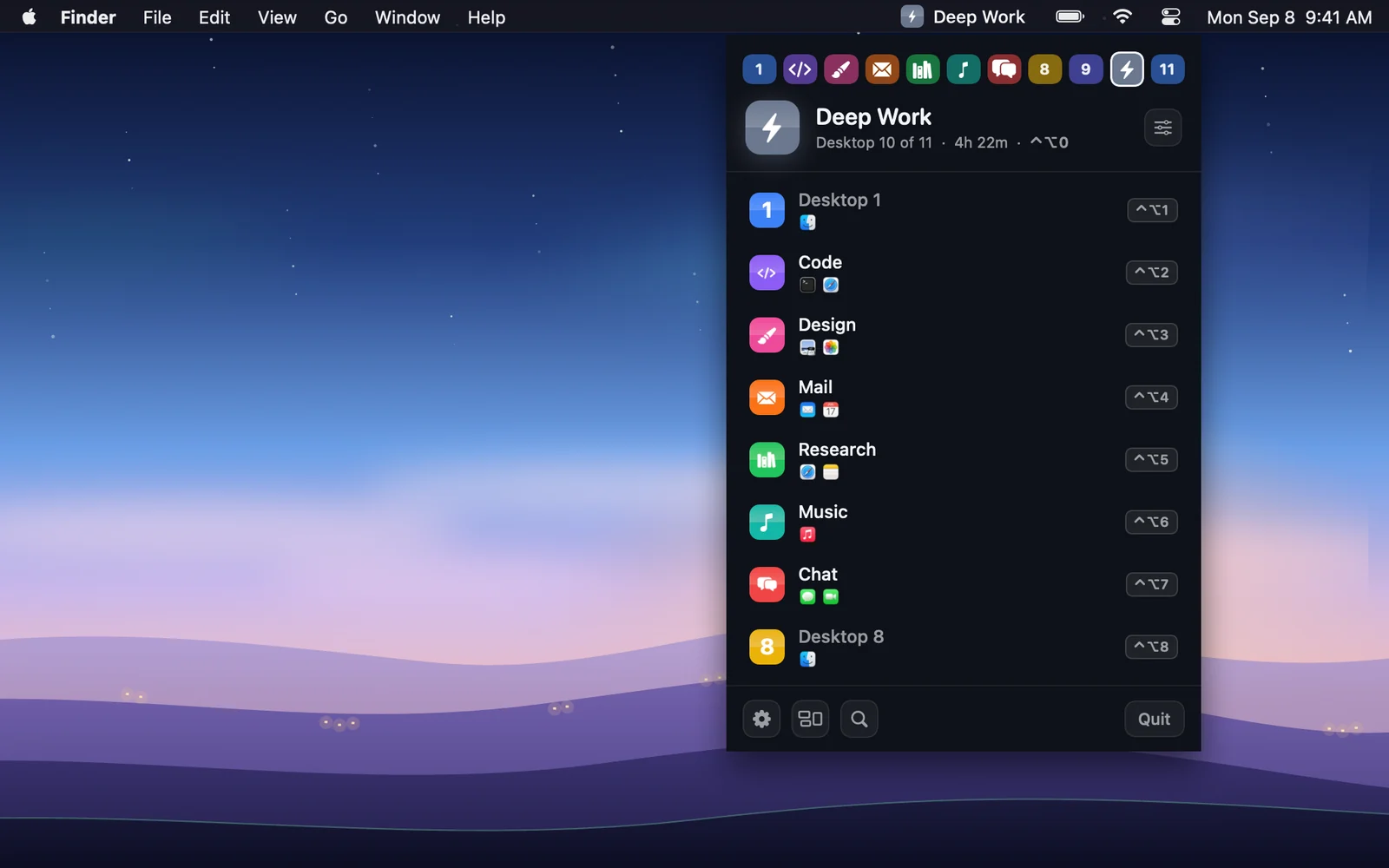
The name where you look.
A tile and the name of the desktop you are on. Click it for every desktop, the apps on each, the time you spent there today, and a rename field.
03Quick Switcher
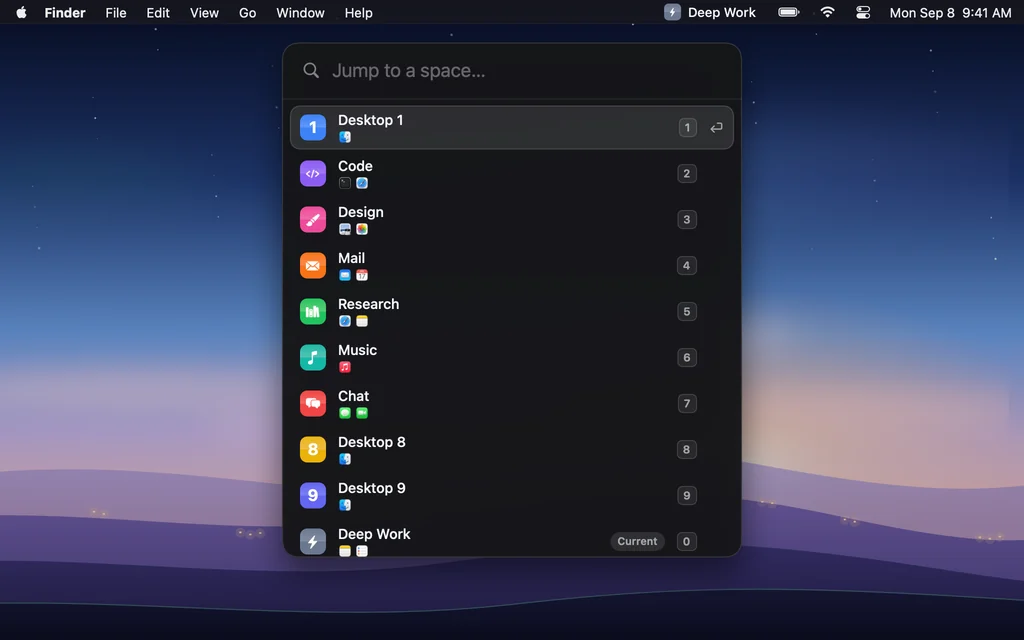
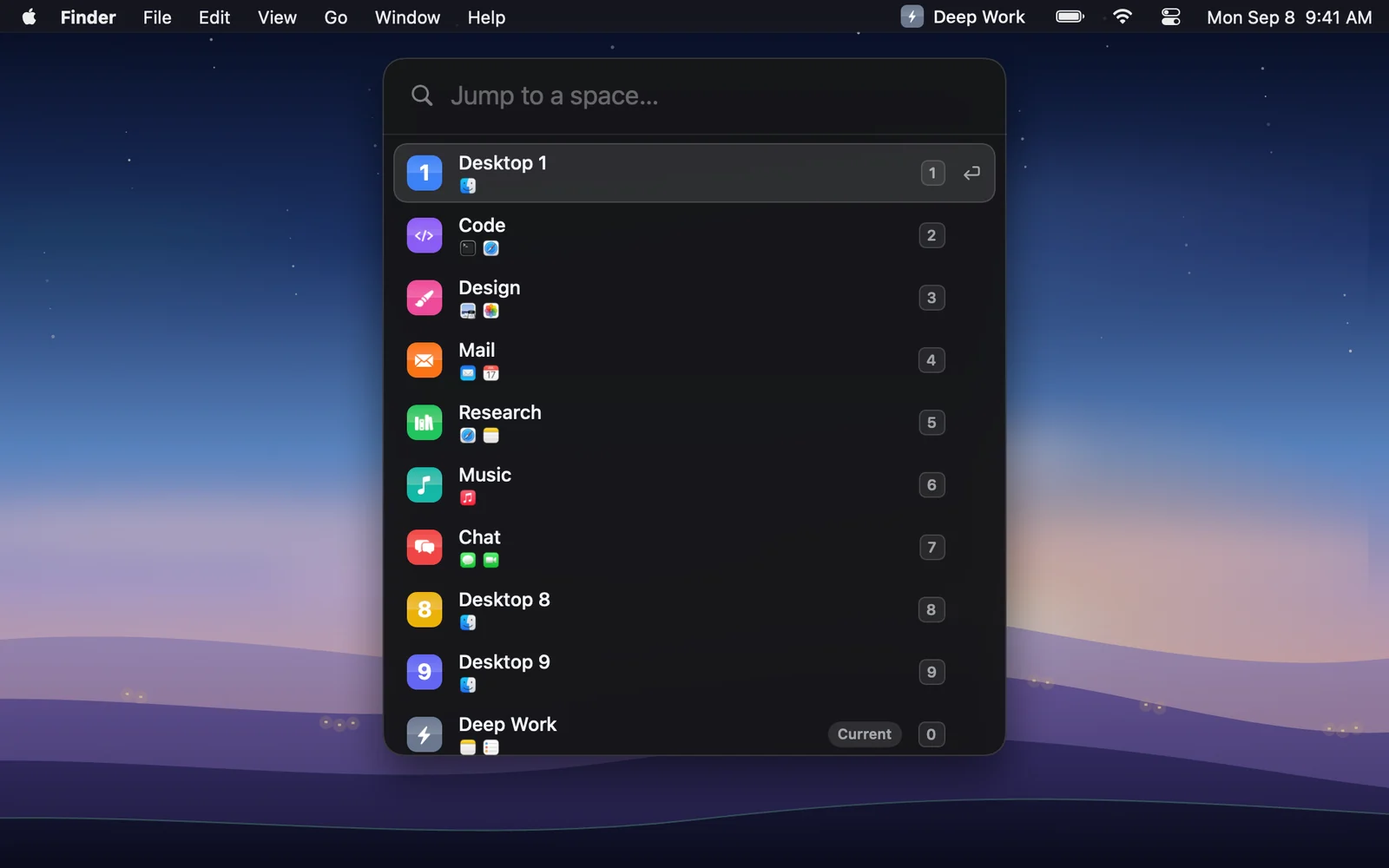
A few letters, Return.
Control-Option-Space opens it. Type a name, a number or an app that lives on the desktop; the app comes forward when you land.
04Switch tag
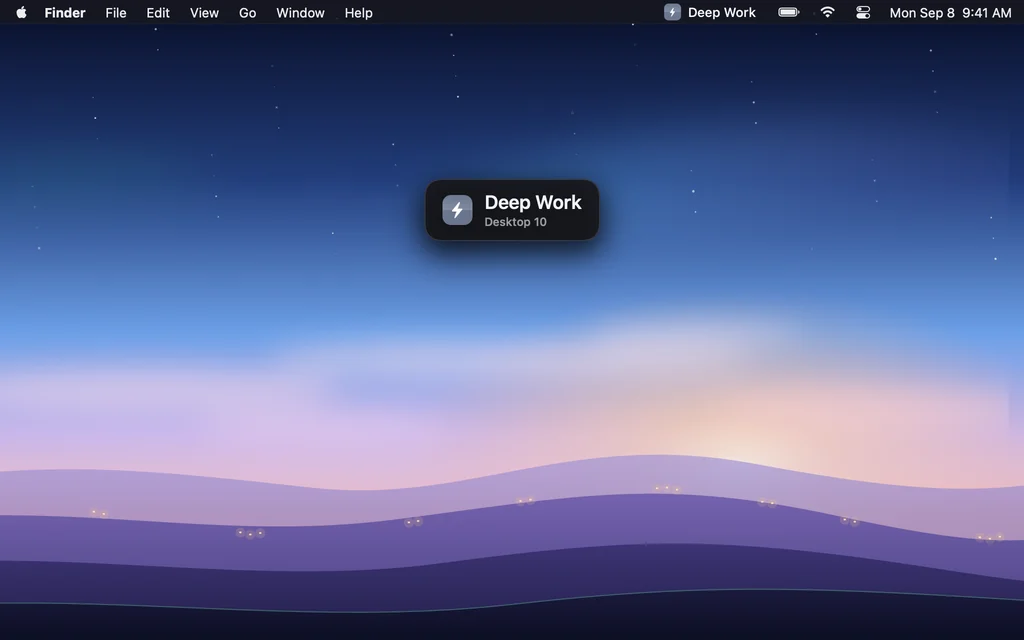
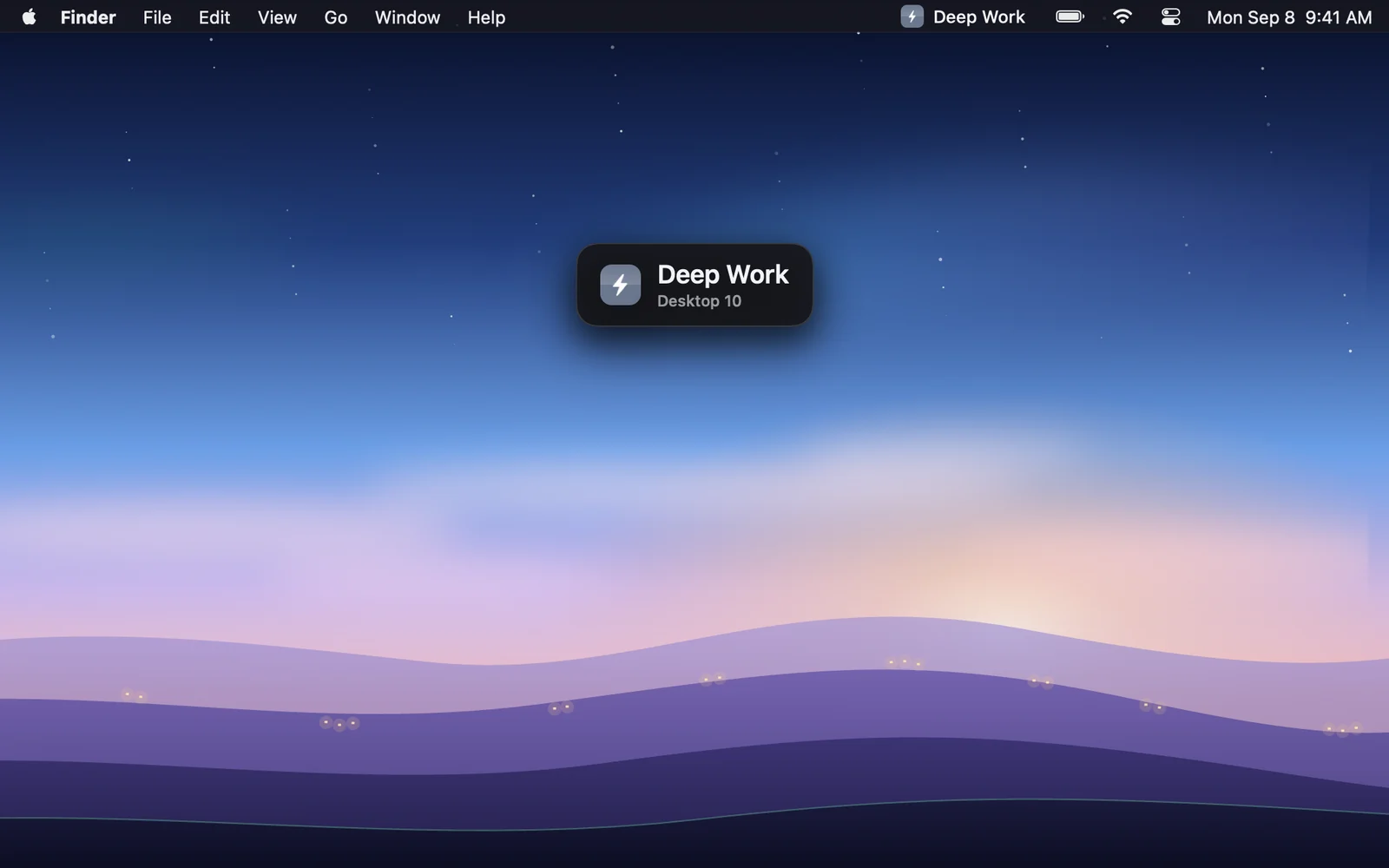
A greeting, then gone.
Land by swipe, shortcut or click and the name shows for a moment, then gets out of the way. Center, top or bottom.
Inside Mission Control
The names where “Desktop N” used to be.
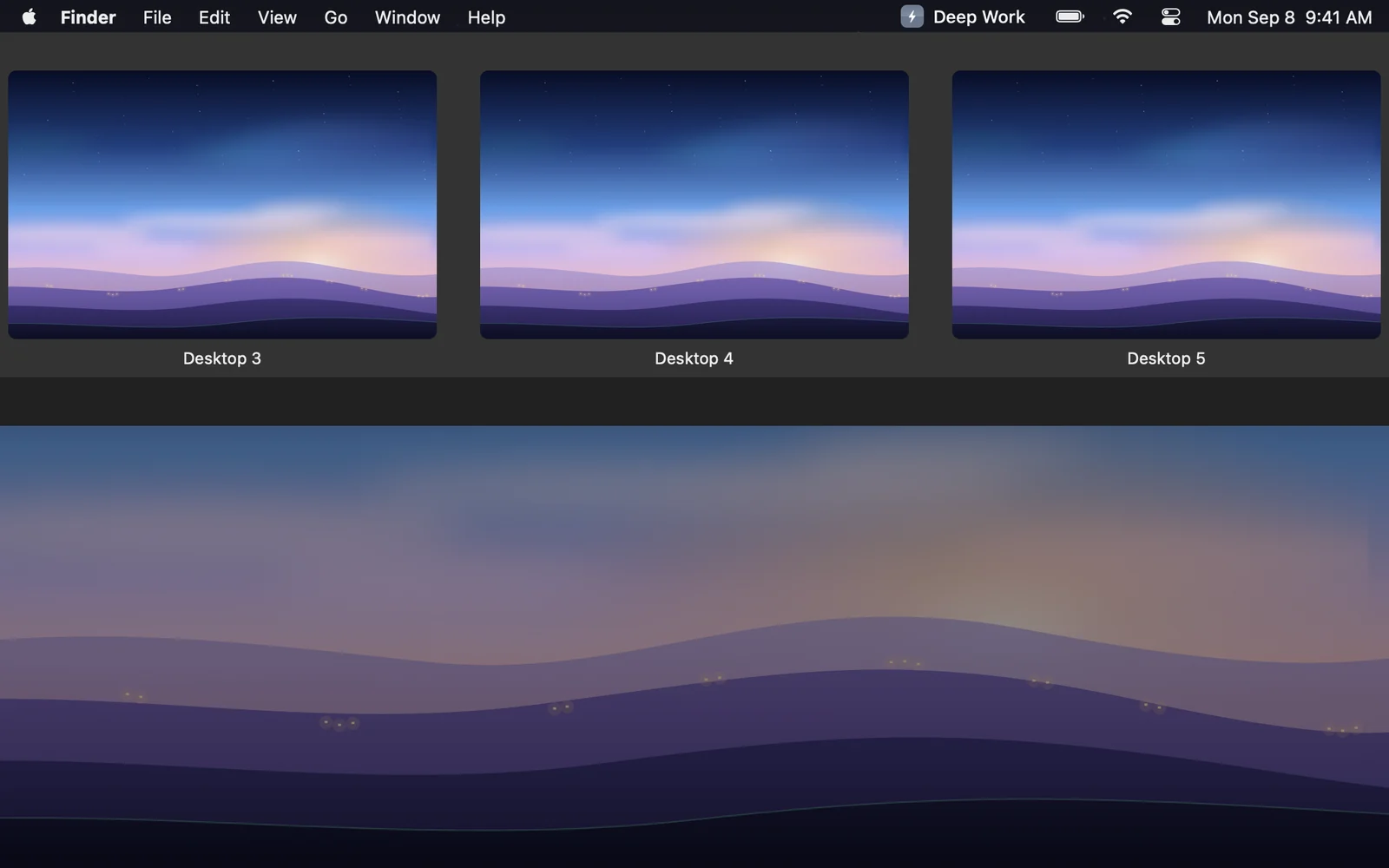
Drag the handle · left is macOS as it ships · right is the same screen with Doorplate · sample names
- Stock macOS, SIP on
- Doorplate reads where the Dock draws each label through the Accessibility tree and lays a pill in the desktop’s color over it. No system files touched, no injection, no disabling System Integrity Protection.
- Moves with the Dock
- The pills slide in with the bar, glide down when the previews expand, and ride out when Mission Control closes. They follow the Dock’s own notifications, not a timer.
- Your call where they sit
- On the label line under each preview, or inside the preview’s bottom edge. Label unnamed desktops or leave them clean. Prefix the number if you like it.
Doorplate exists because I keep ten desktops open, one per project, and macOS has never let me tell them apart. Mission Control shows a row of identical thumbnails labeled Desktop 3, Desktop 4, Desktop 5, and it has looked like that since Lion.
So I wrote the app I wanted: a name for each desktop, shown in the places I actually look. The pill under the thumbnail, the tile in the menu bar, a switcher that takes two letters and Return. Nothing more than that.
What it refuses to do matters as much. It never touches system files, never asks for more than one permission, and and talks to the internet for two things only: checking a license key and looking once a day for a newer version. Nothing about you or your desktops leaves the Mac. When Apple changes something, it gets fixed promptly, and each macOS beta is checked before it ships.
It costs $7.99, once. If it is not for you, the trial ends and nothing else happens. If it is, hello@doorplate.app reaches me directly.
The maker of Doorplate
One person, one app, no investors
Pricing
One price. Three Macs.
No subscription, no account. One key for up to three Macs, and a key moves to a new Mac from Settings. Try everything for 14 days first; nothing is locked during the trial.
14 days free · no card · no account · every 1.x update included
- What you get
- Names in Mission Control, the menu bar, the Quick Switcher, the hover strip and the tag. Per-desktop shortcuts, the notch label, the Dock’s badges on every desktop, presentation mode, links for Shortcuts, Raycast and Alfred. One key for three Macs.
- During the trial
- Fourteen days with everything unlocked, no card, no account. The trial is the full app; nothing is held back to make you buy.
- After the trial
- The app stops until a key is entered. Your names and settings stay on your Mac either way.
- Updates
- Every 1.x update is included. A future major version may be a separate purchase, with a discount for existing keys.
- Requirements
- macOS 14 Sonoma or later, on Apple Silicon and Intel. One permission: Accessibility.
- Refunds
- Email within 14 days of purchase and it is refunded in full, no questions.
Wondering how it stacks up against the alternatives? The full comparison, row by row.
Questions
Short answers.
If yours is not here, the full FAQ is longer, and hello@doorplate.app answers.
Does macOS let you rename desktops on its own?
No. Through macOS 27 Golden Gate, Mission Control still labels every desktop “Desktop 1”, “Desktop 2” and so on, with no field to change it. Doorplate adds the name and shows it everywhere the number used to be.
Do the names really show inside Mission Control?
Yes, on Apple Silicon and Intel, with System Integrity Protection left on. Doorplate reads where the Dock draws each label through the Accessibility tree and lays a pill in the desktop’s color over it. The pills follow the Dock’s own animation, so they slide in, expand and leave with the row.
What permission does it need?
Accessibility, once. It is how the app finds Mission Control’s labels and how it switches desktops the way your keyboard does. There is no keyboard tap and no screen recording. The only network calls are the license check and a once-a-day look for a newer version, with nothing sent.
Will it slow my Mac down or drain the battery?
Measured as CPU-time deltas, Doorplate costs about 0.1 % of one core while idle, about 1 % in active use, and about 3 % for the seconds Mission Control is open. It holds 22 MB of memory. Nothing runs on a timer while you are not doing anything.
Which Macs and macOS versions?
macOS 14 Sonoma or later, on Apple Silicon and Intel. The download is a universal binary.
How much does it cost?
$7.99 once, for up to three Macs, with a 14-day trial of everything. No subscription, no account.
Put a name on the door.
One small app, no Dock icon, one permission. Your names live in your preferences, not on a server.